 BarbellForm
Logging a set
Most sets take one tap. The rest of this page is for the sets that don’t go to plan.
-
Start the workout
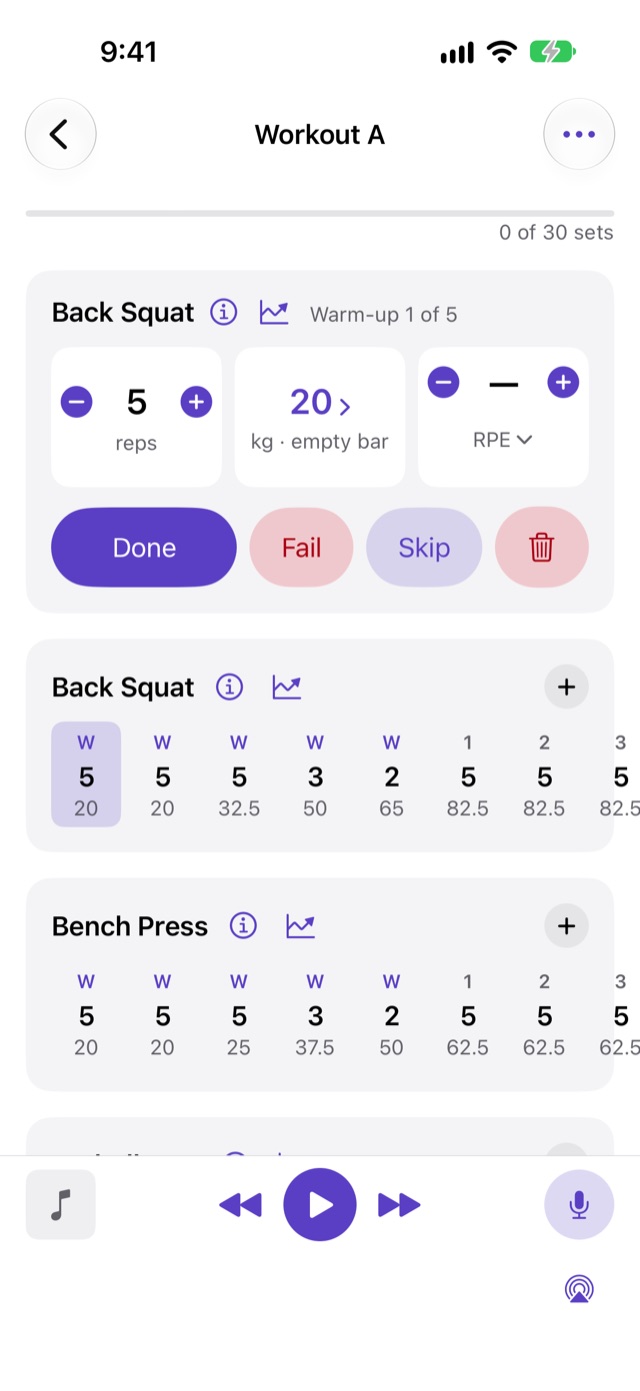
On Today, tap Start workout. The logger opens on the first set, usually the squat’s first warm-up.
The set you’re on sits in the pane at the top: the exercise, the set’s number, its reps and weight as tiles, and its tempo if it has one. Below, every exercise shows its sets as a row of small columns: number, reps, weight. The set up now is shaded; a set you’ve picked has an outline.
-
Tap Done
If you did what it says, tap Done. If you got fewer reps, step the reps down with − first, then tap Done. If you couldn’t finish the set, tap Fail.
A missed set matters to the program: on 5×5, the weight only goes up after a session where every set was met. See Why this weight.
-
Rest
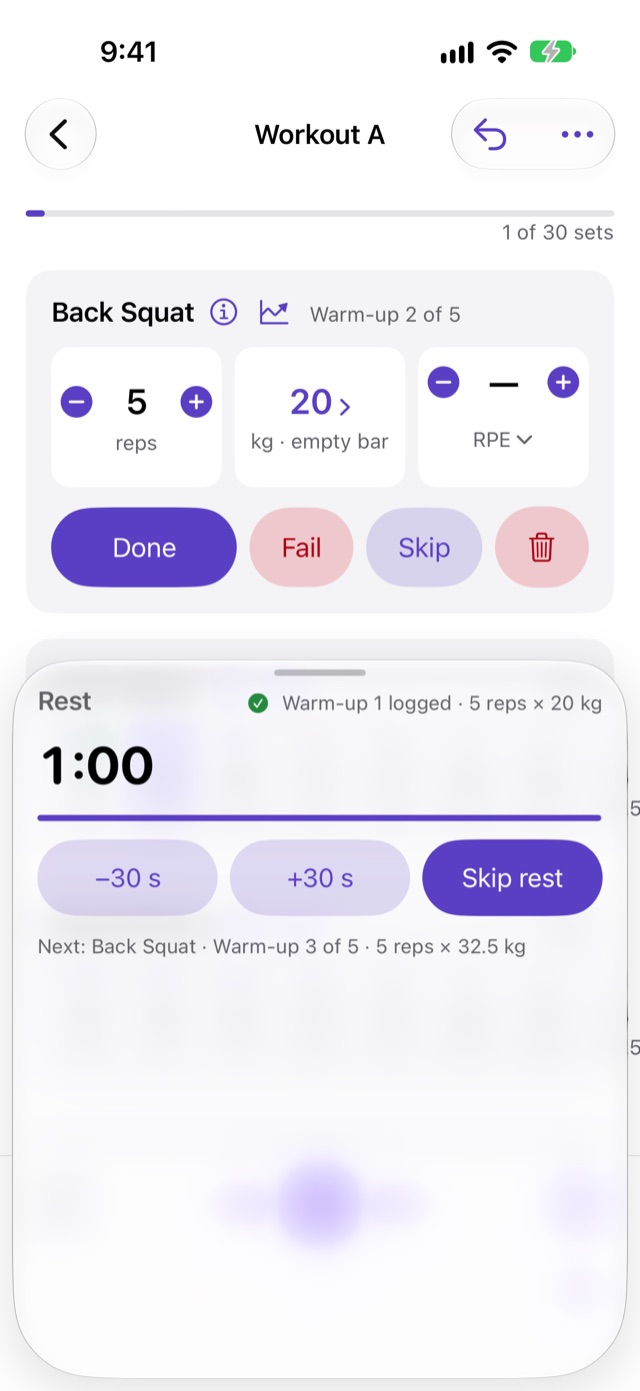
Logging a set brings up the rest: a countdown, −30 s and +30 s, Skip rest, what you just logged and what’s next. Swipe it down to get back to the logger; the time left stays as a small line in the pane, and tapping it brings the sheet back.
When the rest is up you get one alert, even with the phone locked. If you have music playing, the cue lowers it briefly and gives it back. It never pauses it.
-
Fix a set you already logged
Tap the set in its row. It opens in the pane, and its reps, weight and effort step in place with − and +. Each change saves as you make it. The pane also shows when you logged the set and the rest before it.
From there you can make it a warm-up, or tap Up now to go back to the set you’re due to do.
-
Add a set, or an exercise
The + beside an exercise’s name adds a set like its last one. It opens in the pane for you to adjust and isn’t logged until you tap Done.
Add exercise in the logger picks one from the library. It starts with no sets; use its + to add them.
-
Undo
Every logging action can be undone: a set logged by mistake, a changed rep count, a warm-up you didn’t mean to make. Undo puts back the value from before, as long as nothing has changed it since.
Next: Loading the bar